---
title: Quickstart
description: Run Mood Music locally and get back your first real playlist recommendation.
url: https://mood-music-docs.thally.app/quickstart
---
# Quickstart
Run Mood Music locally and get back your first real playlist recommendation.
This gets you from a clone of the repository to typing a mood and getting back real Spotify playlists, running entirely on your own machine.
It takes about 10 minutes.
## Before you begin
These are the basic requirements you need to get started:
- Node.js and pnpm
- A free [Cloudflare account](https://dash.cloudflare.com/sign-up) (for Workers KV)
- A [Spotify Developer](https://developer.spotify.com/dashboard) account
- An [Anthropic API key](https://console.anthropic.com)
#### Install the required tool
In the [Spotify Developer Dashboard](https://developer.spotify.com/dashboard), create an app.
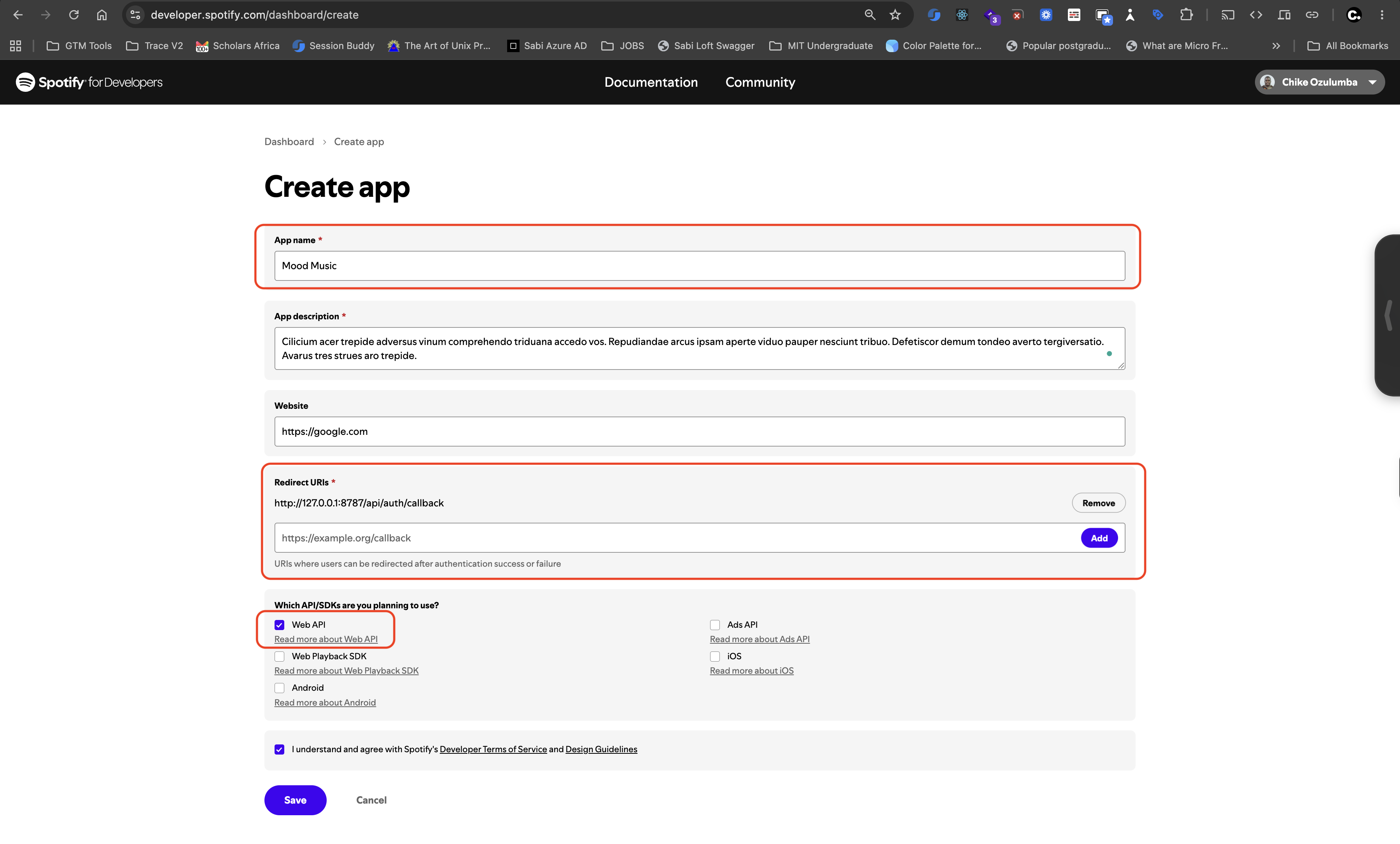
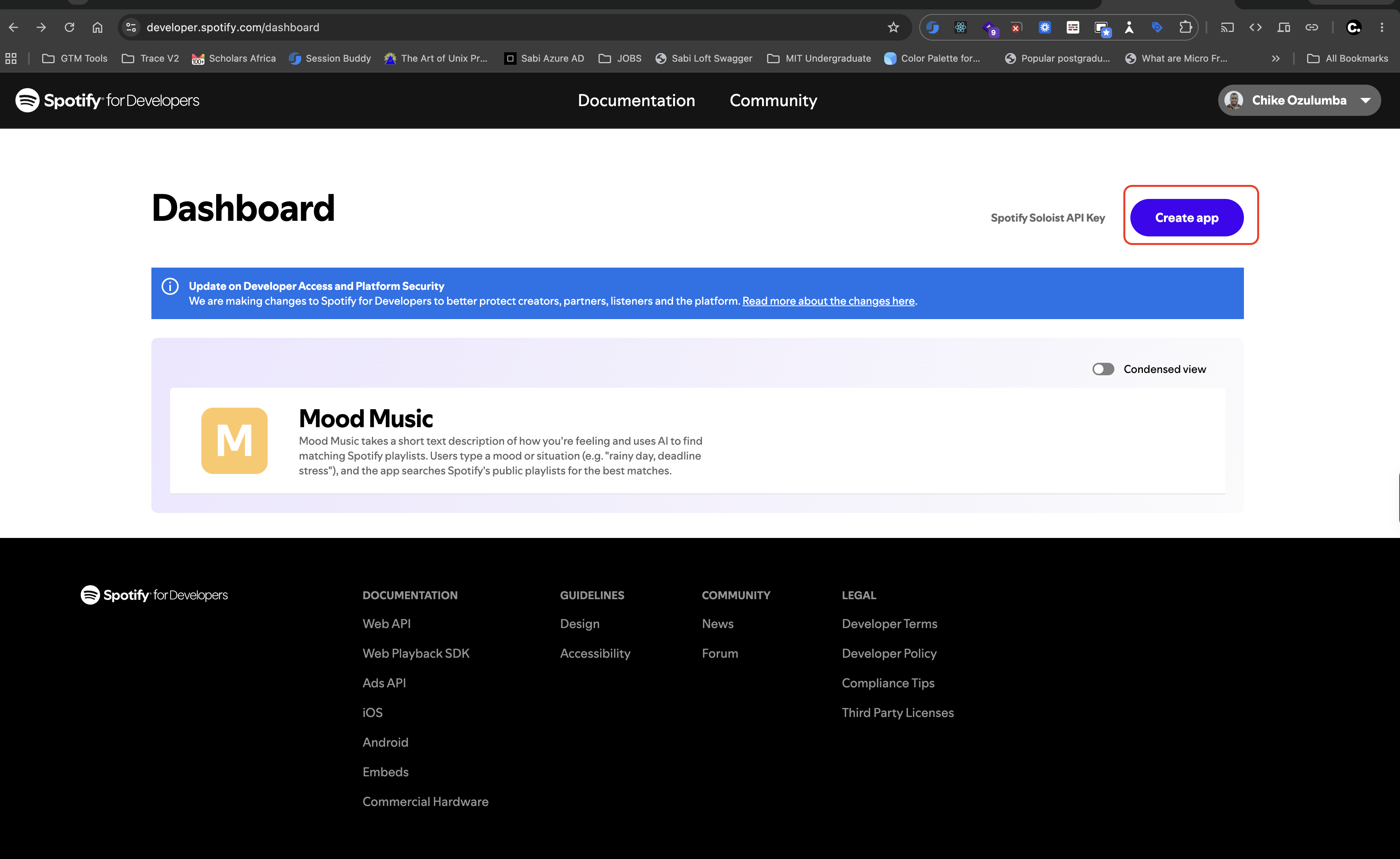 Name the app, add a redirect URI so login works locally, and select the Web API:
```txt
http://127.0.0.1:5173/api/auth/callback
```
Name the app, add a redirect URI so login works locally, and select the Web API:
```txt
http://127.0.0.1:5173/api/auth/callback
```
 > **Register the redirect URI:**
The redirect URI is the URL that Spotify will redirect to after the user logs in. It must be exactly the same as the one you registered in the Spotify Developer Dashboard. Spotify does not allow `*.localhost` URLs, use `127.0.0.1` in place of `localhost` when working locally instead.
Register the exact port you'll run the dev server on — `5173` is Vite's default.
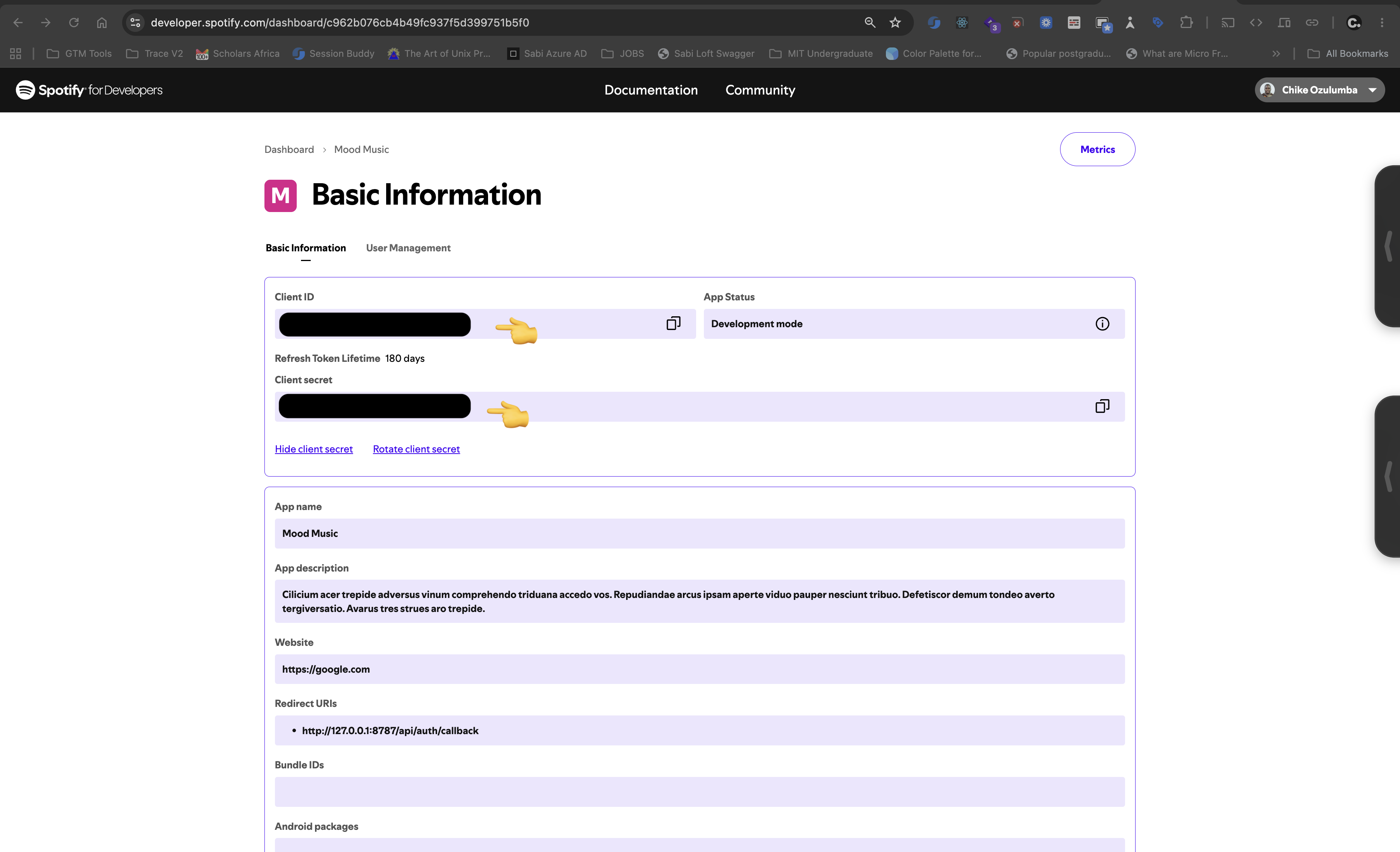
After you save, copy the **Client ID** and **Client secret**.
> **Register the redirect URI:**
The redirect URI is the URL that Spotify will redirect to after the user logs in. It must be exactly the same as the one you registered in the Spotify Developer Dashboard. Spotify does not allow `*.localhost` URLs, use `127.0.0.1` in place of `localhost` when working locally instead.
Register the exact port you'll run the dev server on — `5173` is Vite's default.
After you save, copy the **Client ID** and **Client secret**.
 #### Clone and install the project
```bash
git clone https://github.com/chikeozulumba/mood-music.git
cd mood-music
pnpm install
```
#### Create your Cloudflare KV namespace
```bash
pnpm dlx wrangler login
cd apps/api
wrangler kv namespace create MOOD_MUSIC_SESSIONS
wrangler kv namespace create MOOD_MUSIC_SESSIONS --preview
```
Paste the two namespace IDs these commands return into the `[[kv_namespaces]]` block of `apps/api/wrangler.toml` (`id` and `preview_id`).
#### Add your local environment variables
```bash
cp apps/api/.dev.vars.example apps/api/.dev.vars
```
Open `apps/api/.dev.vars` and fill in:
```bash
ANTHROPIC_API_KEY=...
SPOTIFY_CLIENT_ID=...
SPOTIFY_CLIENT_SECRET=...
```
This file is gitignored and read automatically by `wrangler dev`.
#### Verify the result
From the repo root:
```bash
pnpm dev
```
This starts Vite at `http://localhost:5173` and `wrangler dev` at `http://127.0.0.1:8787` together, with Vite proxying `/api/*` requests to the Worker.
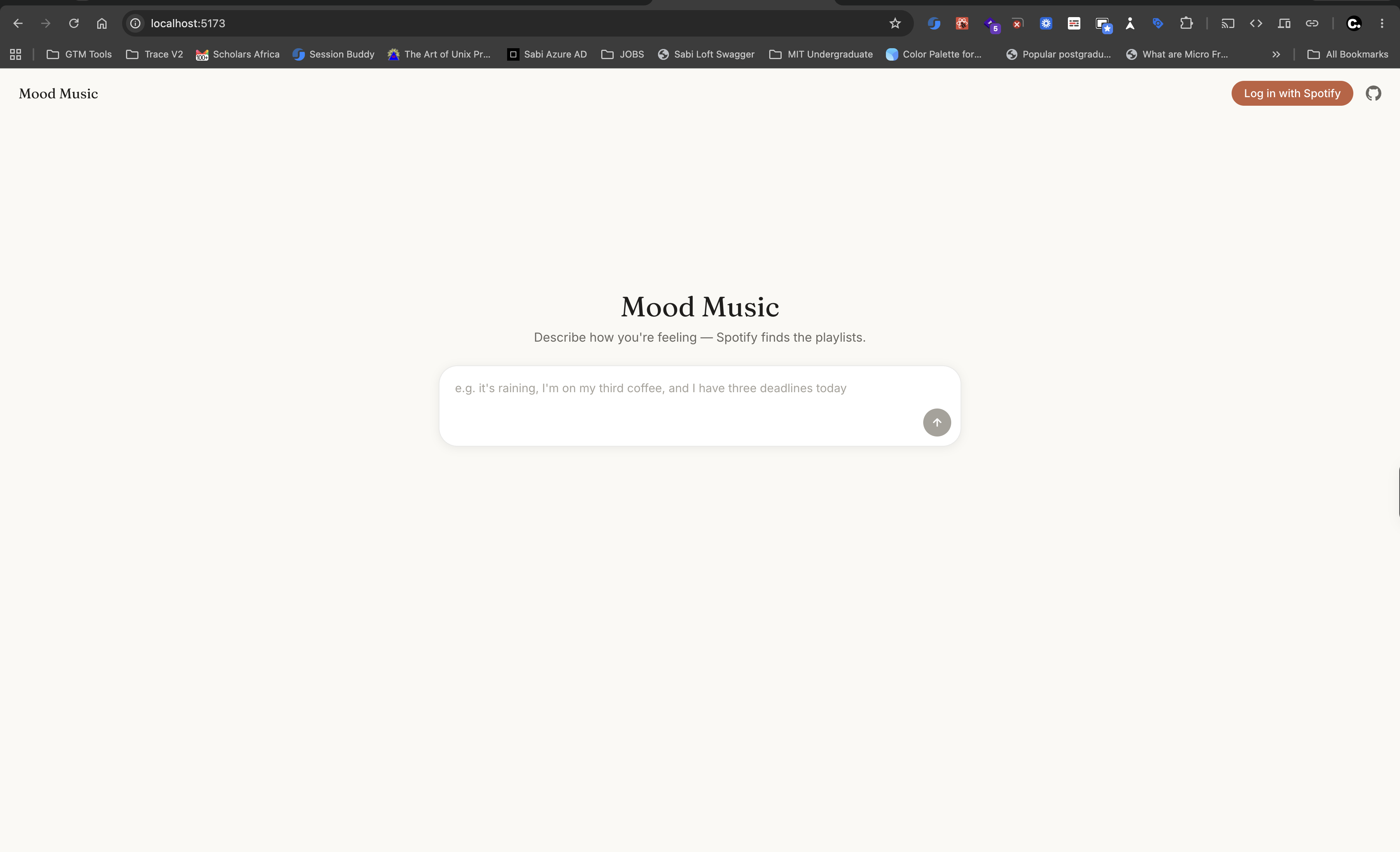
Open **http://localhost:5173**.
#### Clone and install the project
```bash
git clone https://github.com/chikeozulumba/mood-music.git
cd mood-music
pnpm install
```
#### Create your Cloudflare KV namespace
```bash
pnpm dlx wrangler login
cd apps/api
wrangler kv namespace create MOOD_MUSIC_SESSIONS
wrangler kv namespace create MOOD_MUSIC_SESSIONS --preview
```
Paste the two namespace IDs these commands return into the `[[kv_namespaces]]` block of `apps/api/wrangler.toml` (`id` and `preview_id`).
#### Add your local environment variables
```bash
cp apps/api/.dev.vars.example apps/api/.dev.vars
```
Open `apps/api/.dev.vars` and fill in:
```bash
ANTHROPIC_API_KEY=...
SPOTIFY_CLIENT_ID=...
SPOTIFY_CLIENT_SECRET=...
```
This file is gitignored and read automatically by `wrangler dev`.
#### Verify the result
From the repo root:
```bash
pnpm dev
```
This starts Vite at `http://localhost:5173` and `wrangler dev` at `http://127.0.0.1:8787` together, with Vite proxying `/api/*` requests to the Worker.
Open **http://localhost:5173**.
 #### Confirm the app is working
Type a mood or a description of your day — something like "quiet Sunday, need something to read to" — and submit it. Within a couple of seconds you should see a list of real Spotify playlists.
You've just run the full mood → Claude → Spotify pipeline end to end, with the result now cached locally for 24 hours.
## If nothing comes back
- Confirm `ANTHROPIC_API_KEY`, `SPOTIFY_CLIENT_ID`, and `SPOTIFY_CLIENT_SECRET` are in `apps/api/.dev.vars`, not the repo root's `.env.local` (that file isn't read by the API).
- Confirm the two namespace IDs from step 3 are actually pasted into `wrangler.toml` — a missing or placeholder ID fails KV calls silently in some wrangler versions.
- Check the `wrangler dev` terminal output for the actual error; Claude- or Spotify-side failures are logged there, not in the browser console.
## Next
Mood search works without logging in. To add Spotify login — and to see the most common way this breaks when you deploy to a new domain — continue to [Spotify login: setup and troubleshooting](/guides/spotify-oauth).
#### Confirm the app is working
Type a mood or a description of your day — something like "quiet Sunday, need something to read to" — and submit it. Within a couple of seconds you should see a list of real Spotify playlists.
You've just run the full mood → Claude → Spotify pipeline end to end, with the result now cached locally for 24 hours.
## If nothing comes back
- Confirm `ANTHROPIC_API_KEY`, `SPOTIFY_CLIENT_ID`, and `SPOTIFY_CLIENT_SECRET` are in `apps/api/.dev.vars`, not the repo root's `.env.local` (that file isn't read by the API).
- Confirm the two namespace IDs from step 3 are actually pasted into `wrangler.toml` — a missing or placeholder ID fails KV calls silently in some wrangler versions.
- Check the `wrangler dev` terminal output for the actual error; Claude- or Spotify-side failures are logged there, not in the browser console.
## Next
Mood search works without logging in. To add Spotify login — and to see the most common way this breaks when you deploy to a new domain — continue to [Spotify login: setup and troubleshooting](/guides/spotify-oauth).